
Free Employee Timesheet Template (Excel) With Overtime
A free weekly timesheet in Excel with time in and out, unpaid breaks, daily or weekly overtime, a job code column and manager approval, plus a worked example and the payroll mistake that costs hourly staff money.
Nagi Software Team9 min read
An employee timesheet records the hours someone worked each day: start and finish times, unpaid breaks, total hours and how many of them are overtime. Our free Excel template does that for a week, splits regular from overtime hours under the rule you set, and ends with a manager's approval and a pay total.
We make Nagi HR Suite, which has weekly timesheets with approval and overtime built in. The template follows the same order: hours, then overtime, then sign-off, then payroll.
Download the timesheet template (Excel)
The download is a free Excel workbook with no email form, and it opens in Google Sheets too. It has a printable weekly timesheet for one person, a team log for everyone at once, and a weekly totals sheet that feeds payroll. White cells are for typing. Gray cells hold formulas and are locked.
Download the employee timesheet template (.xlsx)
| Sheet | What it holds |
|---|---|
| How to use | Setup in five steps |
| Settings | Workweek start day, weekend days, weekly threshold, daily threshold, overtime multiplier, weekend and holiday multipliers |
| Holidays | Date and name of each paid holiday |
| Timesheet | One employee, one week: date, time in, time out, break, job code, hours, overtime, signatures |
| Team log | One row per employee per day, for a team filled in together |
| Weekly totals | Regular, overtime, weekend and holiday hours per employee per week, with gross pay at each rate, plus hours by job code |
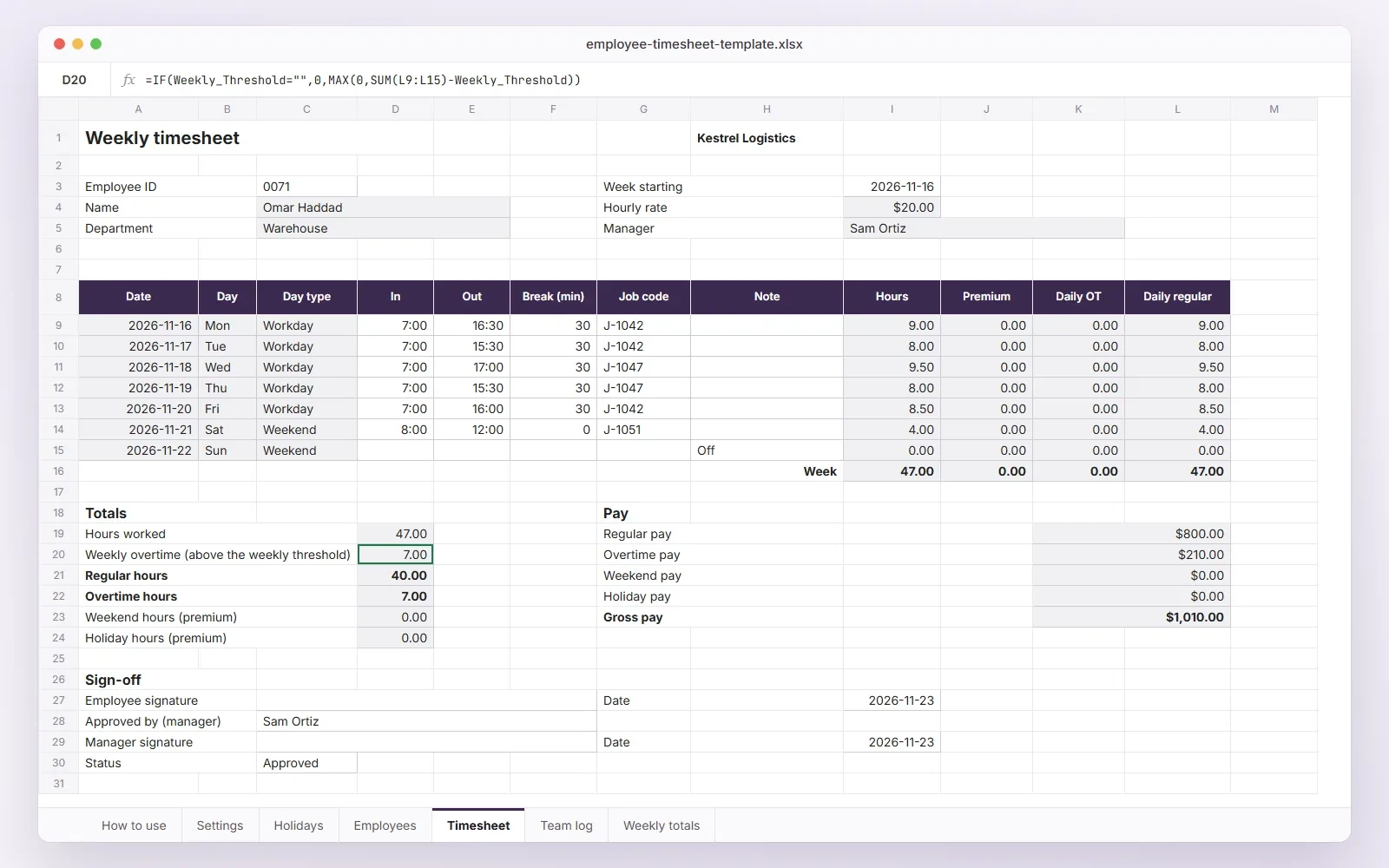
What goes on an employee timesheet
A timesheet needs the employee's name and ID, the week it covers, and for each day the date, start time, finish time and unpaid break. From those it works out hours per day, the week's total, and the split between regular and overtime. Add a job code if you bill hours to customers, and a signature block for approval.
Here is the full field list in our template:
- Employee name, ID, and department or site
- Week starting date
- Each day: date, time in, time out, unpaid break in minutes, job or cost code, note
- Totals: hours worked, regular, overtime, weekend and holiday hours
- Employee signature and date, then manager name, signature and date
Most free timesheets skip the job code. A contractor or a delivery firm that bills by job needs it, because one person's 47 hours can be spread over three customers. The Weekly totals sheet adds hours up by job code as well as by person.
Keep the signed copies. In the US, the Department of Labor asks employers to keep payroll records for at least three years and the time cards that wages are calculated from for two years (US DOL Fact Sheet #21). Other countries set their own periods.
How to fill in a weekly timesheet with overtime
Five steps: set your overtime rule once, enter each day's times and break, let the sheet split the hours, check the totals, then sign and approve. After the first setup, a week takes about two minutes per person.
Step 1: set your overtime rule in Settings
Enter the day your workweek starts and the thresholds your policy uses. For US employees covered by the federal rule, overtime is due for hours over 40 in a workweek at no less than one and a half times the regular rate. The same law sets no daily limit and no extra pay for Saturdays, Sundays or holidays as such (US DOL Fact Sheet #23). So a US setup is a weekly threshold of 40, a multiplier of 1.5, and the daily, weekend and holiday boxes left blank.
Some states and plenty of company policies add a daily rule. California pays time and a half after 8 hours in a workday and double time after 12 (California DLSE). The UK has no legal overtime premium at all. Employers don't have to pay extra for overtime there, but average pay across all the hours worked can't fall below the National Minimum Wage (GOV.UK). Whatever your rule is, it goes in Settings once. If you also pay a night or weekend premium, the free shift differential calculator turns clock times into pay with the overtime method shown both ways.
Step 2: enter times and the unpaid break
Type time in and time out as clock times (7:00, 16:30) and the unpaid break in minutes. The hours formula subtracts the break and copes with shifts that run past midnight:
Hours =ROUND(MOD([@Out]-[@In],1)*24 - [@[Break min]]/60, 2)
A 7:00 to 16:30 shift with a 30-minute lunch is 9.5 − 0.5 = 9.0 hours. Without MOD, a 22:00 to 06:00 night shift shows as minus 16.
Step 3: let the sheet split regular and overtime
Each day's hours land in one of three places. Hours on a weekend or holiday go to the premium column if you set a multiplier for that kind of day. Hours above the daily threshold, if you set one, go to daily overtime. The rest are daily regular hours. At the bottom, any regular hours above the weekly threshold move to overtime.
Daily OT    =IF(Daily_Threshold="", 0, MAX(0, [@Hours] - [@Premium] - Daily_Threshold))
Weekly OT   =MAX(0, SUM(DailyRegular) - Weekly_Threshold)
Overtime    =SUM(DailyOT) + Weekly_OT
Regular     =SUM(DailyRegular) - Weekly_OT
Step 4: check the totals
Look at three things before anyone signs. Does the total match the shifts you expected? Is any day over 12 hours (a typo, or a double-time day in California)? Is a holiday on the list showing hours worked? The sheet flags days over 12 hours and holidays with hours in amber.
Step 5: sign and approve
The employee signs and dates the sheet. Next, their manager checks it, then signs and dates the approval. Only an approved sheet goes to payroll.
Worked example: one week, one employee
Example: Omar Haddad, a warehouse associate at Kestrel Logistics (our demo company), earns $20.00 an hour. His workweek runs Monday 16 to Sunday 22 November 2026, and the company follows the US federal rule: overtime after 40 hours at 1.5 times.
| Day | In | Out | Break (min) | Hours |
|---|---|---|---|---|
| Mon 16 Nov | 7:00 | 16:30 | 30 | 9.0 |
| Tue 17 Nov | 7:00 | 15:30 | 30 | 8.0 |
| Wed 18 Nov | 7:00 | 17:00 | 30 | 9.5 |
| Thu 19 Nov | 7:00 | 15:30 | 30 | 8.0 |
| Fri 20 Nov | 7:00 | 16:00 | 30 | 8.5 |
| Sat 21 Nov | 8:00 | 12:00 | 0 | 4.0 |
| Sun 22 Nov | off | 0.0 | ||
| Week | 47.0 |
| Hours | Rate | Pay | |
|---|---|---|---|
| Regular | 40.0 | $20.00 | $800.00 |
| Overtime | 7.0 | $30.00 | $210.00 |
| Gross for the week | 47.0 | $1,010.00 |
Saturday isn't paid at a premium here. The federal rule counts hours in the week, not which day they fell on, so Saturday's 4 hours simply count toward the 40.
The rule you pick changes the answer. Take a different week of four long days, 10, 10, 10 and 6 hours, so 36 in total:
| Rule set in Settings | Regular | Overtime |
|---|---|---|
| Weekly over 40 (US federal) | 36 | 0 |
| Daily over 8 | 30 | 6 |
| Daily over 8, then weekly over 40 | 30 | 6 |
Same hours, six hours of overtime apart. That's why the rule belongs in Settings and in your written policy, not in someone's head.
The template doesn't handle everything. California's double time after 12 hours and its seventh-day rule, two pay rates in one week, and tipped staff all need more than a weekly sheet. Ask your payroll adviser before you rely on any spreadsheet for those.
Approval: who signs and when
The employee confirms the hours, and the direct manager approves them before payroll. Set a fixed deadline, for example sheets in by Monday noon for the week before and approved by Tuesday, so payroll never waits on one missing timesheet.
A thumbs-up in the team chat isn't an approval. Six weeks later nobody can find it, and nobody can say which version of the hours it approved. A name, a date and a saved copy are.
Three habits stop most disputes. Nobody approves their own sheet. A correction after signing gets a note saying what changed and why, and both people sign again. The approved version is saved as a PDF, because a spreadsheet in a shared folder can still be edited after payday.
Rolling timesheets into payroll
Payroll needs four numbers per person per week: regular, overtime, weekend and holiday hours. The Weekly totals sheet gives them with gross pay at each rate. If you pay every two weeks, work out overtime for each week first and only then add the two weeks together. The free pay period calendar lists every payday in a year, and the rest of our HR calculators are on the free tools page.
Adding first is the expensive mistake. The federal rule treats each workweek on its own, and hours can't be averaged across two or more weeks (US DOL Fact Sheet #23). Here's Omar's fortnight:
| Method | Week 1 | Week 2 | Pay for 80 hours |
|---|---|---|---|
| Week by week (correct) | 40 regular + 7 overtime | 33 regular | $800 + $210 + $660 = $1,670 |
| Fortnight added first (wrong) | 80 regular over two weeks | 80 × $20 = $1,600 |
The wrong way underpays him by $70. Across a team and a year, that adds up to a back-pay claim.
Once the hours are approved, they become lines on the payslip. Our payslip template shows how overtime and deductions turn gross pay into net pay.
When a spreadsheet timesheet stops working
A spreadsheet timesheet works for a small team with one person collecting the sheets. It starts to slip when people fill in Friday's sheet from memory, when approvals happen in chat, or when someone retypes overtime totals into payroll every week.
Watch for these:
- More than about 10 hourly staff, or more than one site
- Times typed at the end of the week instead of at clock-in
- Late arrivals you can't see, because the sheet only shows totals
- Overtime retyped from one file into another before payroll
- Two managers approving from their own copies
If late arrivals and absences are the bigger problem, a monthly attendance grid helps more than a timesheet. Our employee attendance tracker covers that, and the PTO tracker template handles leave balances.
Timesheets and overtime in Nagi HR Suite
Nagi HR Suite has weekly timesheets with an approval workflow. You set the overtime policy (daily thresholds, plus weekend and holiday multipliers) and the result feeds payroll. In the payroll run, overtime is split into weekend, holiday and other hours and multiplied by the rate you configured.
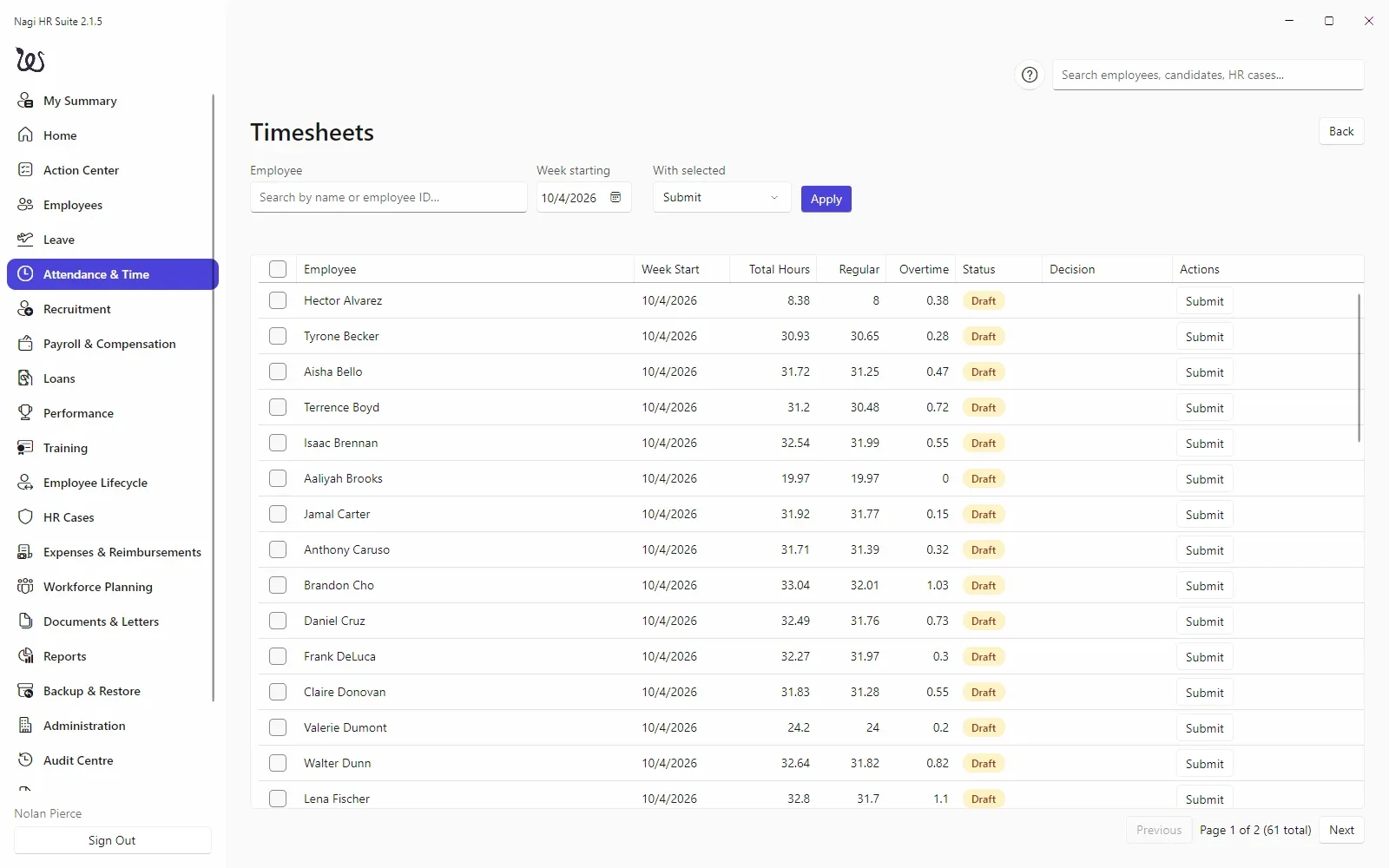
Staff clock in and out on the Android or iPhone app. The time stamp comes from your company's server, not from the phone, so a phone clock set ten minutes fast changes nothing. Managers approve their own team's timesheets from the phone. Employees can review their hours worked, late minutes and overtime themselves.
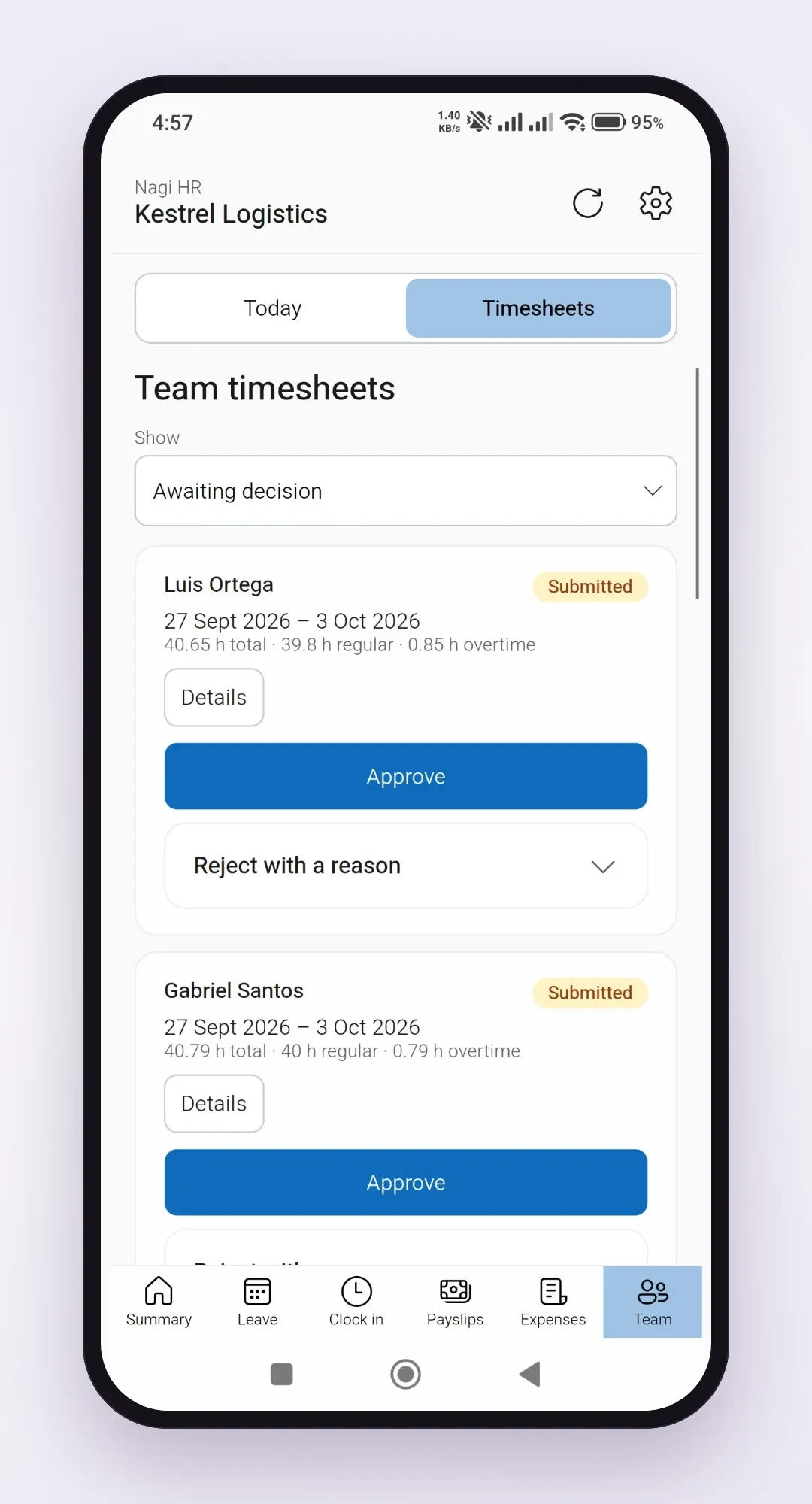
Two limits, plainly. The product page describes the overtime policy as daily thresholds with weekend and holiday multipliers and doesn't list a weekly threshold, and the software applies no country's law for you, so check weekly totals for US hourly staff, which is what this template's Weekly totals sheet is for. And payroll is gross-to-net with your own rules: no tax rules, no tax filing and no direct deposit. Keep your accountant or payroll provider for those.
The data stays on your Administrator PC unless you choose Nagi Cloud, and phones on the office Wi-Fi reach it without the internet. One company license covers the Administrator PC, 10 employee PCs and 11 phone connections, with unlimited employee records: $19 a month, $190 a year or $349 once, as listed on our pricing page on 14 November 2026.
Use the template if you have a handful of hourly staff and one person who checks the sheets every Monday. Move to software when phones, approvals and payroll start getting typed twice. You can see the whole flow on the Nagi HR Suite page or try it with your own data.
Frequently asked questions
- How do I calculate overtime on a timesheet?
Total the hours worked each day after unpaid breaks, then apply your rule. Under the US federal rule, hours over 40 in the workweek are overtime at 1.5 times the regular rate. A 47-hour week at $20 an hour is 40 × $20 plus 7 × $30, so $1,010. If your state or policy has a daily limit, apply that first.
- How do I deduct a lunch break on a timesheet in Excel?
Record the break in minutes and subtract it from the shift length: =(MOD(Out-In,1)*24)-Break/60. A 7:00 to 16:30 shift with a 30-minute lunch gives 9.5 minus 0.5, so 9.0 hours. MOD keeps night shifts that cross midnight from showing as negative hours.
- Can overtime be averaged over two weeks?
Not under the US federal rule. The Department of Labor says each workweek stands alone and hours can't be averaged across two or more weeks. A 47-hour week followed by a 33-hour week still has 7 overtime hours, even though the fortnight totals 80. Other countries and some contracts work differently.
- How long should I keep employee timesheets?
In the US, the Department of Labor's FLSA guidance asks employers to keep payroll records for at least three years and the time cards that wages are calculated from for two years. Other countries set their own periods, so check your local rules and keep the approved copy, not a draft anyone can edit.
- Who should approve a timesheet?
The employee's direct manager, before the hours go to payroll. The employee signs to confirm the hours, the manager signs and dates the approval, and nobody approves their own timesheet. Set a weekly deadline, such as Monday noon for the previous week, so payroll never waits on a missing sheet.
Sources
- US DOL Fact Sheet #23: Overtime pay requirements of the FLSA, checked November 14, 2026
- US DOL Fact Sheet #21: Recordkeeping requirements under the FLSA, checked November 14, 2026
- California DLSE: Overtime FAQ, checked November 14, 2026
- GOV.UK: Overtime, your rights, checked November 14, 2026
- Nagi HR Suite product page (timesheets, overtime, phone apps), checked November 14, 2026
The product in this post
Nagi HR Suite
HR, attendance, leave and payroll in one desktop application.
- timesheet-template
- overtime
- excel-template
- payroll
- small-business